
Dock and yard basics
Every trailer on site, which door it is on, door assignments, yard moves and the detention clock.
Read the yard
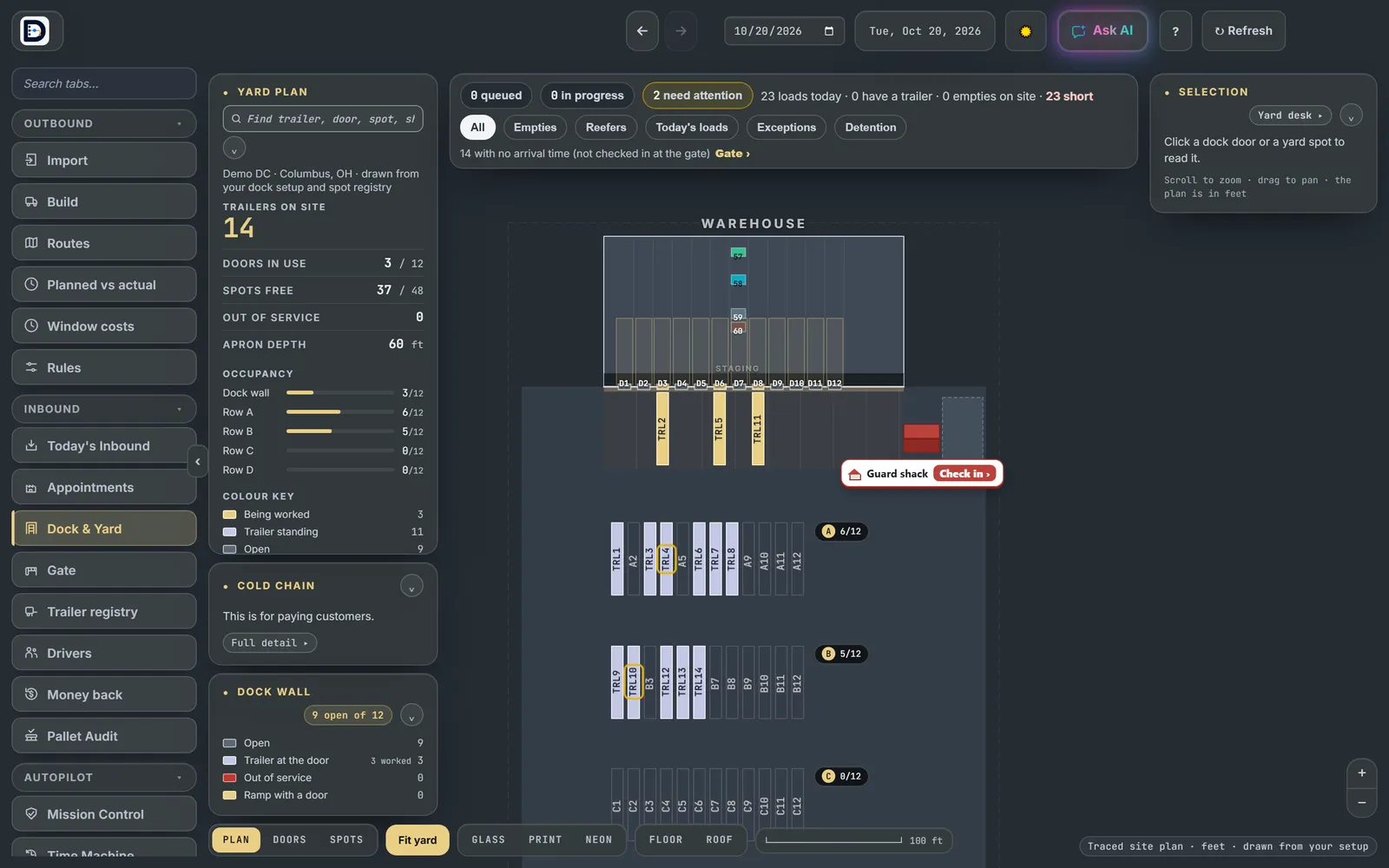
Open the Dock & Yard tab. The plan is drawn from your own dock setup: doors along the warehouse, yard spots in rows. The panel on the left counts trailers on site, doors in use and spots free. Click a door or a spot to read it.
The switch at the top picks the view. This shift holds suggested moves, the move board, carrier detention and the yard walk. Set up holds doors, the yard map and your trailers.
Send a move
Use Create move, or drag a trailer, to send a move to the yard driver's phone. Give the yard driver their link with Yard driver link.
Assign doors
- On the Build tab: Settings, then Assign doors.
- On the Routes tab: Set the day assigns doors, drivers and trailers in one go.
- Locked loads are skipped.
Detention
The detention fold runs a clock on carrier trailers in your yard: over, accruing, or not scored.
Free hours are blank to start, so a carrier with no terms of its own reads "not scored". An admin sets Default free hours (detention) in Settings.
Dock and Yard are on for every new account. An admin can switch either off in Settings, Modules.