
Driver app basics
A link instead of an app: the driver starts the route, delivers each stop, takes proof, and scans.
Give the driver a link
No app store, no password. On the Driver links tab, press Copy link on the driver's row and text it to them. They tap it and see only their own work. Making a new link kills the old one.
Start the day
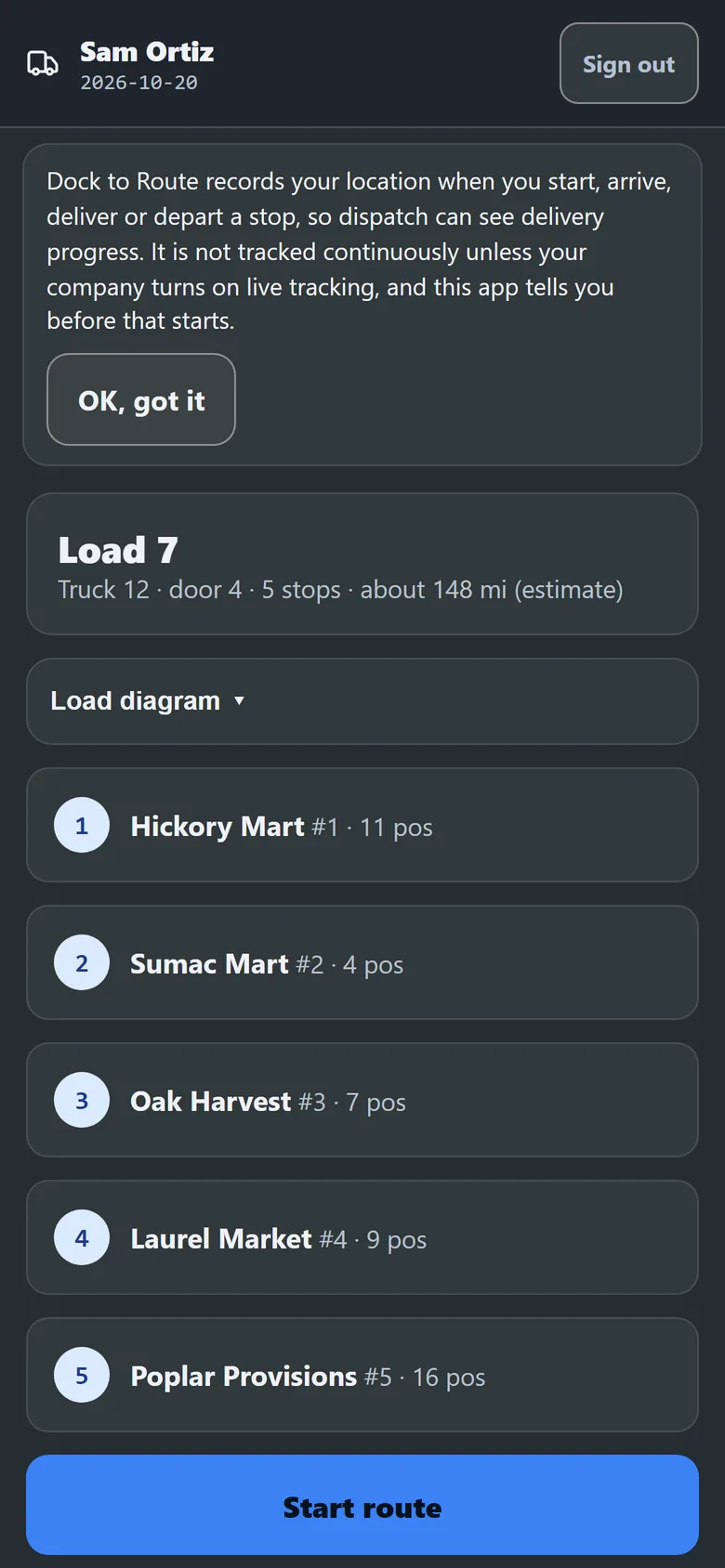
The phone shows the load, the stops in order and a Load diagram. The driver presses Start route. Before the start time it says it is too early instead.
At each stop
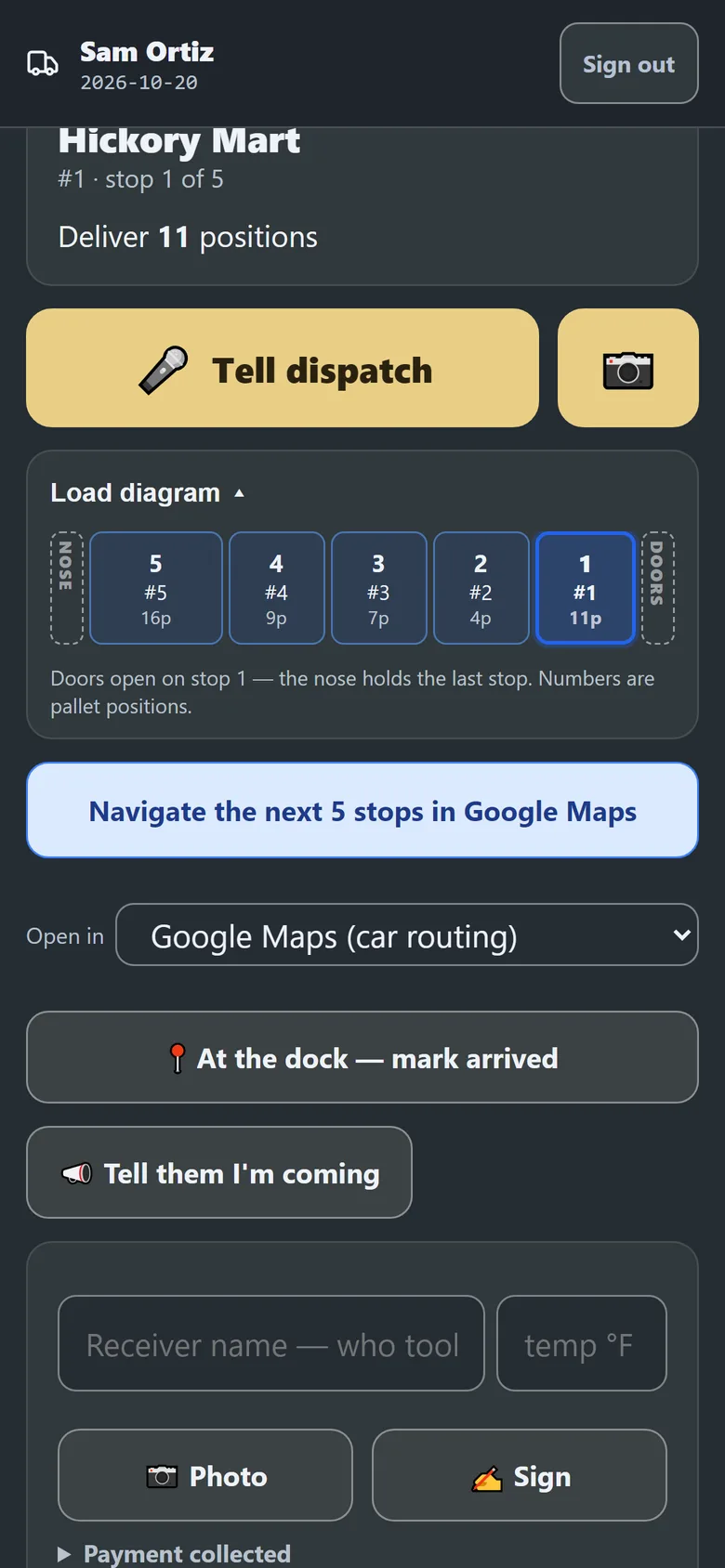
- Navigate: it opens the driver's map app, aimed at the store's dock pin when it has one.
- Press mark arrived at the dock.
- Type the receiver's name, take a Photo (stamped with time and place), and press Sign for a signature.
- If something is wrong, press Short, Refused or Damaged.
- Press Delivered.
Tell dispatch sends a voice note to the office at any point.
The extras are off by default, and an admin turns them on in Driver app field features at the foot of Driver links: live tracking, required proof of delivery, scan to deliver, pallet labels, video and voice notes, and unloading started.
With required proof on, Delivered waits until the proof is in. A driver who cannot get it presses Can't get it and picks a reason. With scan to deliver on, the driver scans labels with the phone camera or a scan gun, and a label for another stop raises a red alert.