
Read and edit routes: move, lock, rebuild
Read each load, drag stops where they belong, lock the good loads and rebuild the rest.
Read a load
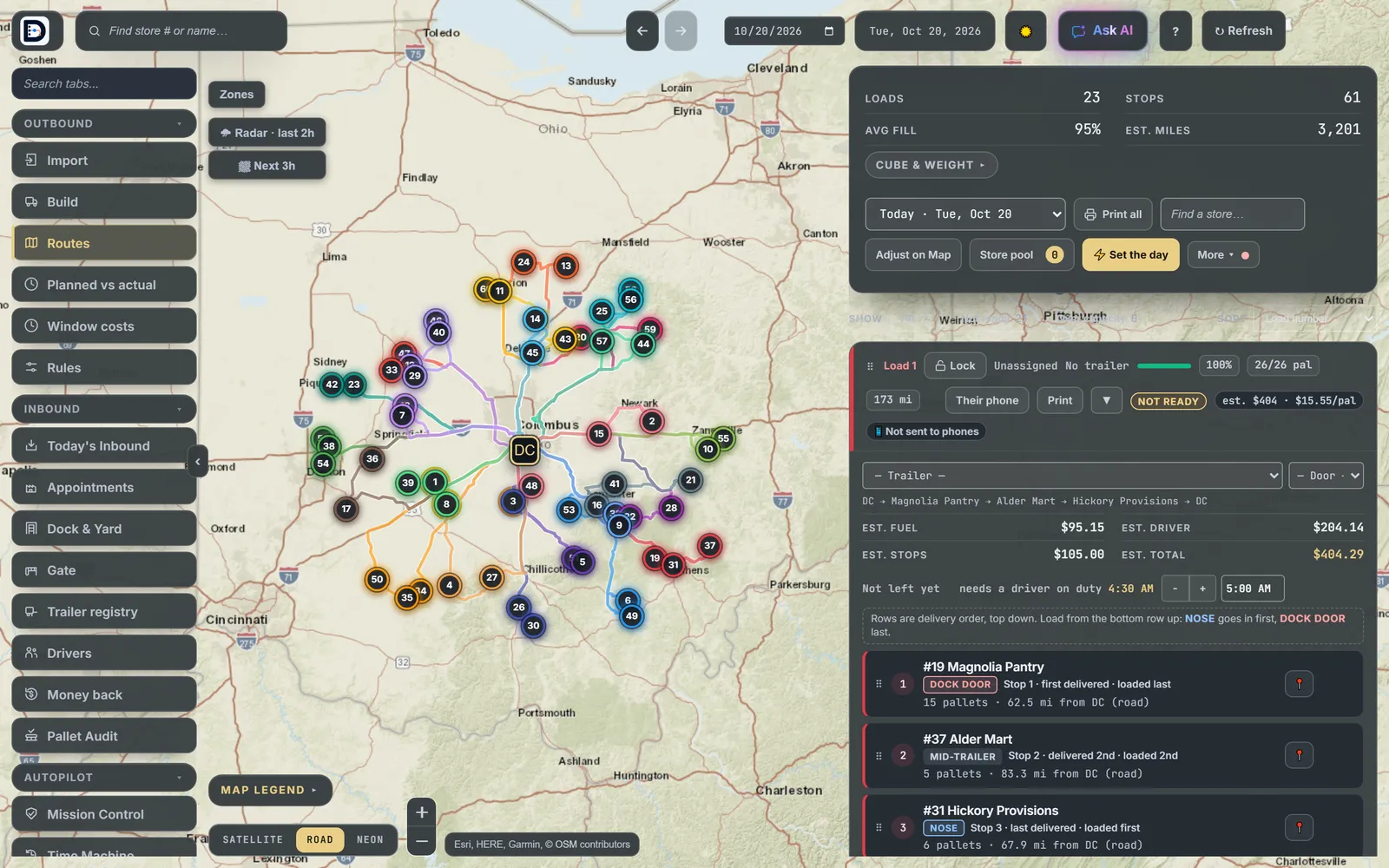
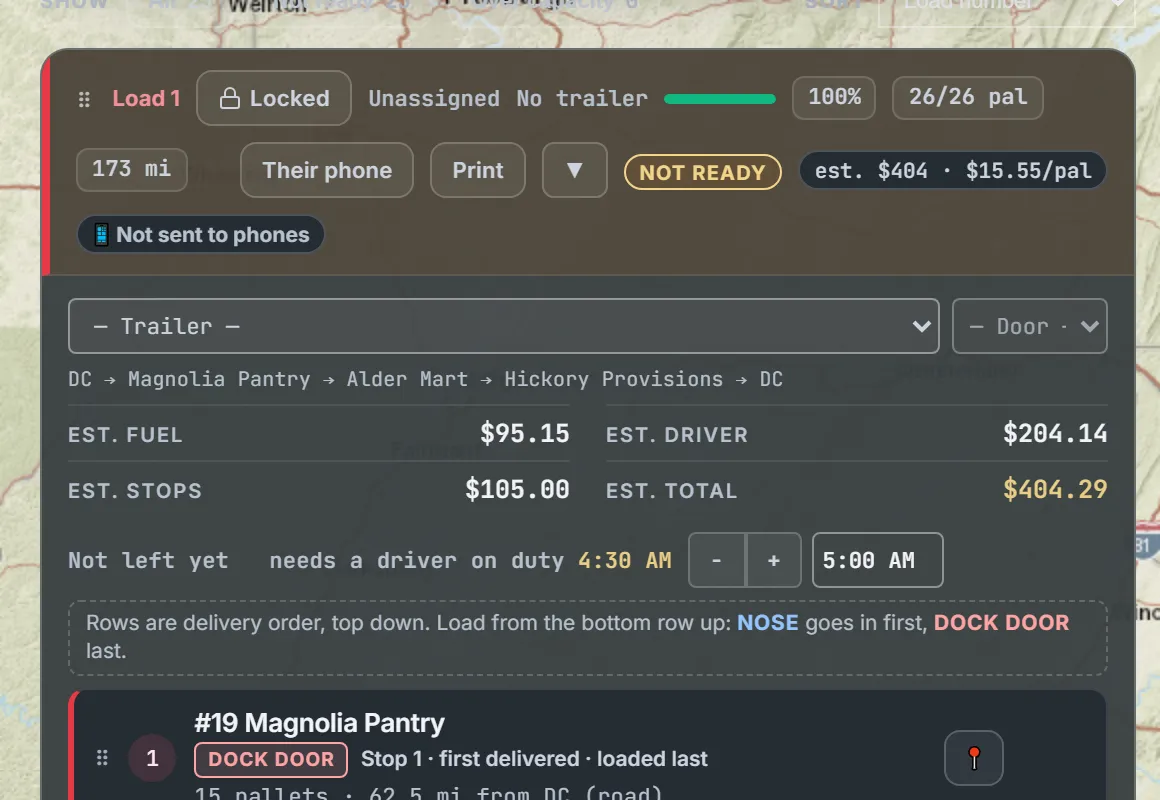
Open the Routes tab. Each load card shows its fill, pallets, miles, estimated cost and the stops in delivery order, top down. The bottom row loads first, at the nose. The top row comes off first, at the dock door. Click a card's header to open or close it.
Move a stop
- Drag a stop row up or down inside its load to change the order.
- Drop it on another load card to move it to that truck.
- Drag a card by its header to change the order of the loads.
Lock what is right
Press Lock on a load card. It turns to Locked. Nothing changes that load until you unlock it: not you, not Build Routes, not Ask AI. A drag onto or off a locked load is refused. To lock every load at once, use Lock all loads built on the Build tab.
Rebuild the rest
- Lock the loads you want to keep.
- Go to the Build tab and press Build Routes.
Locked loads keep their stops, driver, trailer, door and notes. Reset Day also keeps locked loads and sends everything else back to the pool.
Next: print the sheets.