
Set store locations and dock pins
Add your stores, give them delivery windows, and put each pin on the door the truck backs into.
Add stores
Open the Customers tab. Then pick one:
- Add by address: type it, check it on the map with the miles and drive time from your warehouse, and save.
- + Add Store: store number, name, address, latitude and longitude, delivery window (Win Start and Win End) and priority.
- Import Stores: a .csv, .xlsx, .xls or .json list. It matches by store number and never deletes a store.
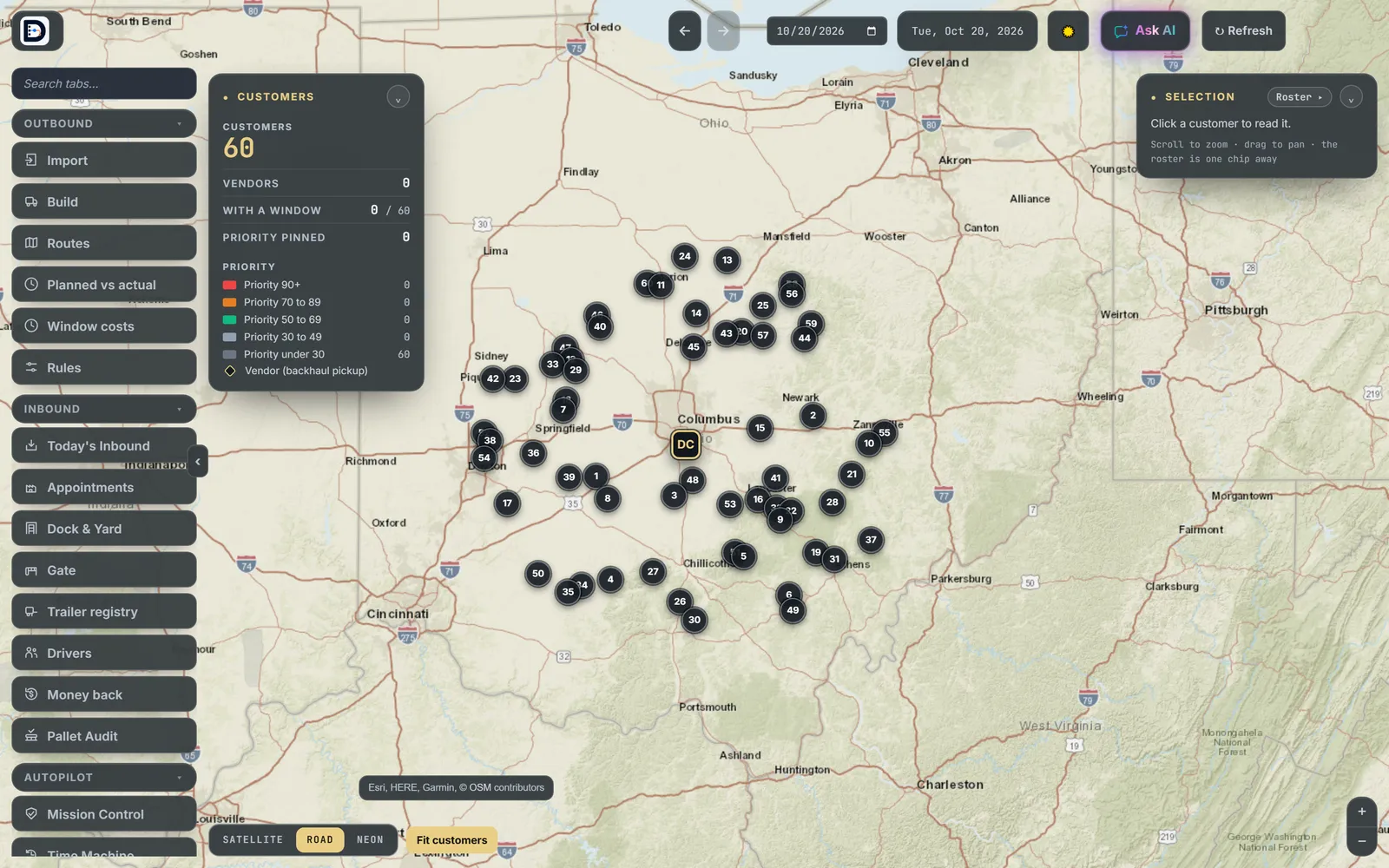
Put the pin on the dock
An address lands on the street, not the receiving door. During setup, the Store map step lists the doubtful pins first: ones that only matched a town, ones over 150 miles out, and two stores within 100 feet of each other.
- Drag the pin onto the door the truck backs into.
- Press Pin is right on each one you checked.
- Press These pins are right when the list looks good.
Outside setup, fix a store by typing its latitude and longitude in the store form. A pin you set by hand always wins over the address lookup. The driver's Navigate button goes to the dock pin when there is one.
Delivery windows
A store with no window is planned to your Stores open at time. Note: Clear All Pins on this tab is about priority, not map pins.