
Import tonight's orders from any file
Drop a CSV, Excel, PDF or photo on the Import tab, check the columns, confirm, and send it to Build.
Steps
- Open the Import tab. The heading says Import Wizard.
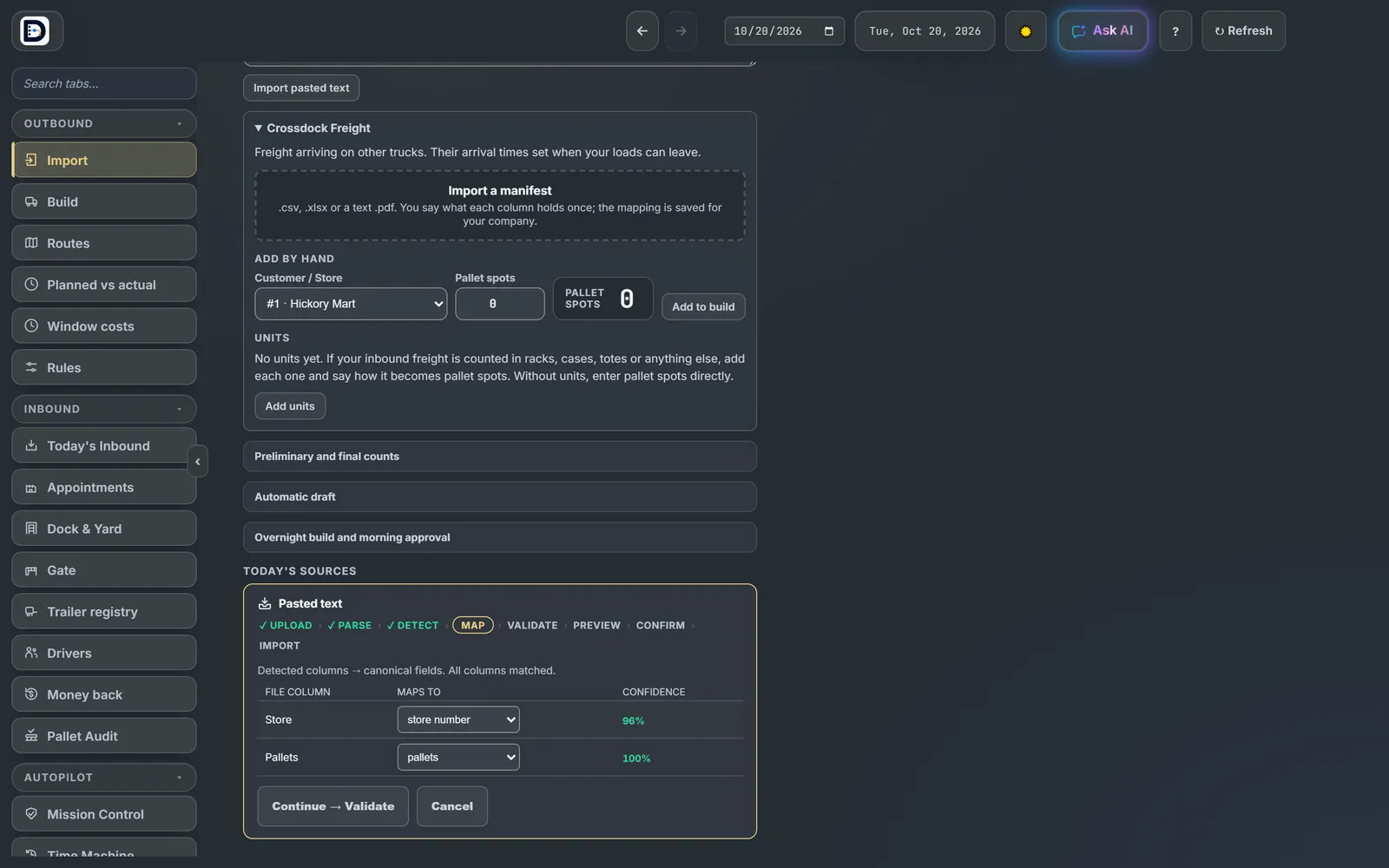
- Drop your file on the box, or pick it. You can also paste rows (Store, Pallets) and press Import pasted text.
- Map. Check what each column maps to: store number, pallets, cube, weight, cases, delivery window and more. Set a column you do not need to ignore. A weak match asks you to confirm it.
- Press Continue → Validate. Bad rows are left out unless you fix them. Two rows for one store are added together.
- Check the preview: how many stores are updated, new or unchanged. If the file says it is for another day, you are told. If it overlaps an earlier file, pick Add on top instead or Replace it instead.
- Press Confirm import, then Send to Build →.
Good to know
- It reads .csv, .txt, .tsv, .xlsx, .xls, .pdf and photos (.jpg, .png, .webp). You can drop several at once.
- Once you confirm a layout, the next file with the same columns is read the same way. The layout is remembered in this browser.
- Nothing reaches the build until you press Send to Build.
- Freight arriving on other trucks goes in the Crossdock Freight section. See crossdock freight.
Next: build the loads.