
Get started: from sign up to your first night
Sign up, set your warehouse, check your stores, add trucks and rules, then import tonight's orders.
Sign up
- Open the Start free page.
- Fill in your name, company, work email and a password of at least 10 characters.
- Type your warehouse address and press Find on map. Close is fine. You move the pin to the exact door later.
- Enter how many trucks you run, tick the terms box and press Start free.
- Open the email we send and click the link. It works for 24 hours.
If the page says sign-ups are not open right now, apply for the founding beta or book a demo from the same page.
Set up
Your first sign in opens Set up Dock to Route. It has seven steps: Your warehouse, Your files, Store map, Trucks, Rules, Rebuild a night, and Tonight. You can stop any time with Back to the workbench. Everything you confirm is kept.
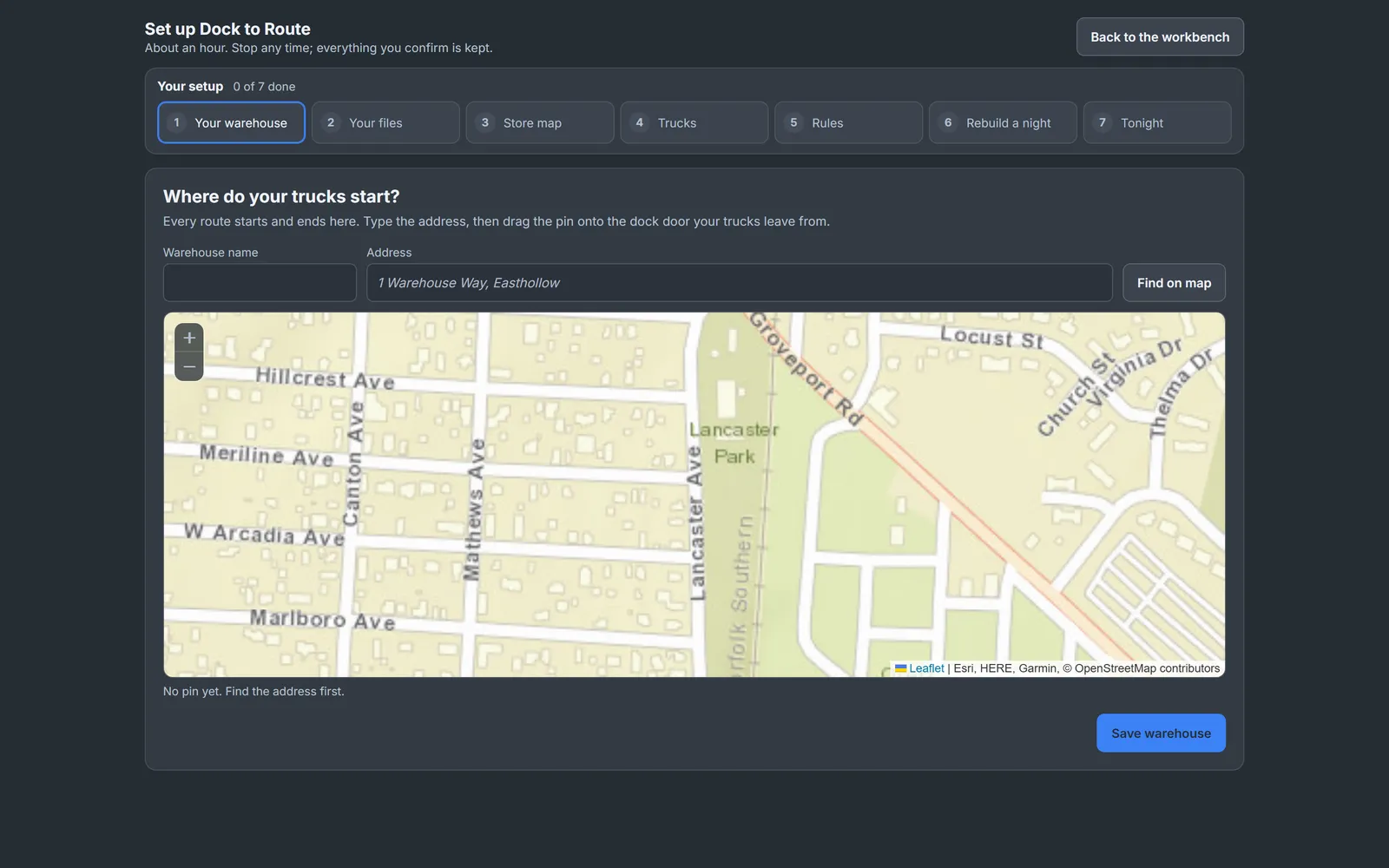
Until every step is done, a checklist stays on the workbench: warehouse address, customers, trucks, a driver link, your first day, and publishing it.
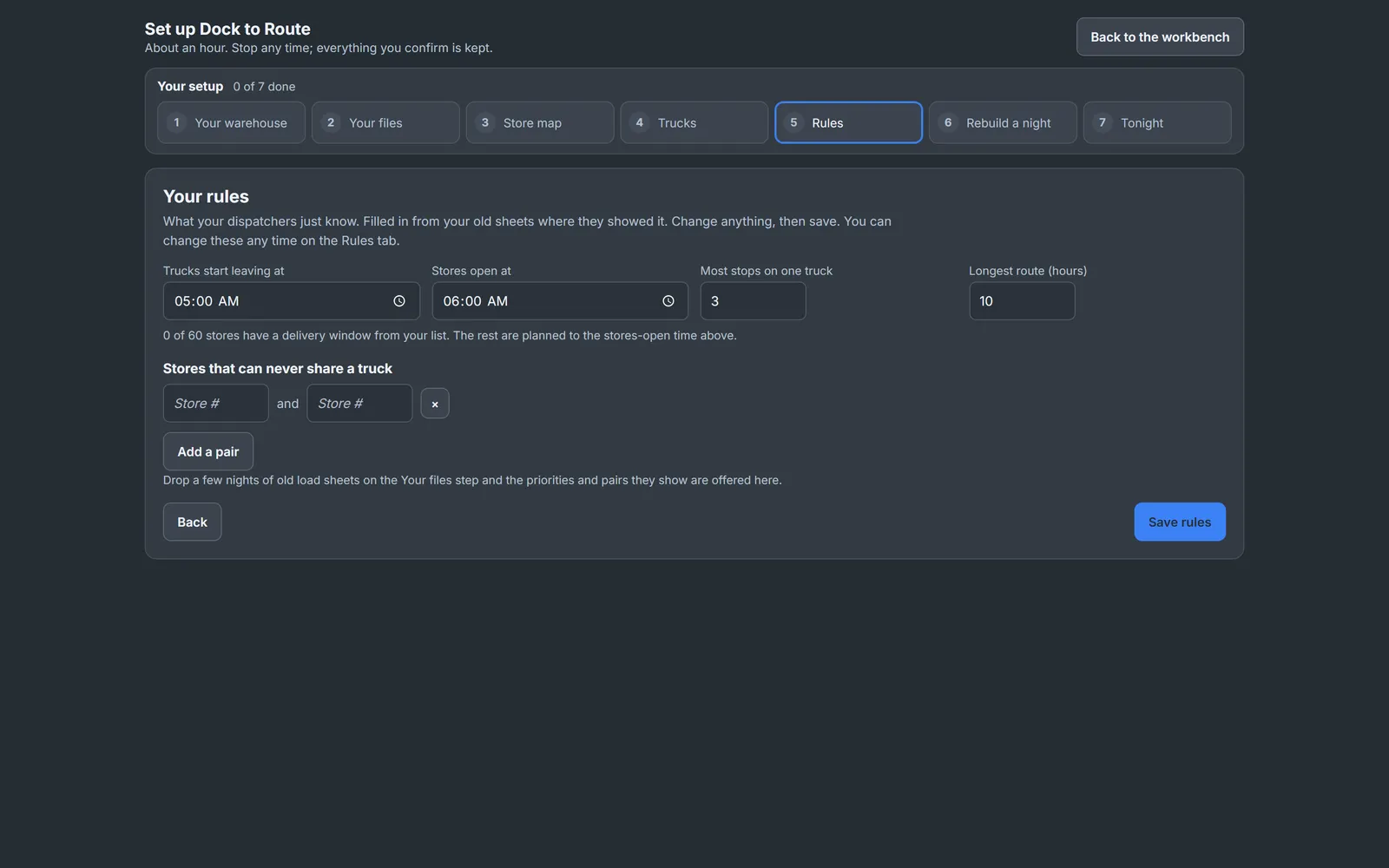
New accounts start with the AI helpers switched off. An admin turns them on in Settings, Modules. The Import Wizard works either way.
Next: check your store pins, add your trucks, then import tonight's orders.